Technology Blogspots for ED638, Dr. M. Rivera
Tuesday, 31 December 2013

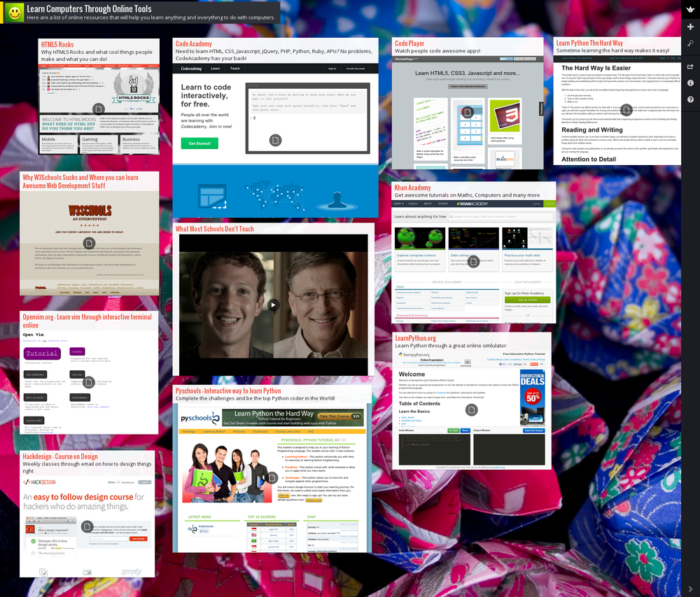
The Internet
tool called Padlet (http://padlet.com/gallery)
uses the concept of graphic organizers, but does so much more. Teachers and students can use it to create
discussions, timelines, brainstorming webs, take notes, add videos, collect
feedback, and even post and answer quizzes.
The pages are called walls.
Teachers and students can build any number of walls where others can
view, collaborate, and edit. Pictures,
videos, and links are easily added to the wall.
The websites most appealing qualities are its simplicity and potential
for instant collaboration.
If teachers wish
to make the walls private, they can do so.
A teacher adds students to the wall by providing them with the link and
password. Once they are added they can
view and edit the wall. There are many
articles and blogs online that share creative ways to use Padlet in the
classroom. The tool can be utilized to
create KWL charts, graphic organizers, or comparison and contrast charts in
real time. Students can also view and edit
each other’s papers and give suggestions using Padlet.
The
Getting Smart (http://gettingsmart.com/2013/02/padlet-todays-digital-sheet-of-paper/) website offers many useful articles and
ideas about how teachers can engage reluctant readers using technology. The website is organized in three
categories: EdTech, Leadership, and
Learning. A few of the titles included
in a blog series are: “Smart Ways to use
Smart Phones in Class” and “The Future of Learning---Digital, Mobile, Real
Time”. The articles discuss a range of
topics from President Obama’s goal of having a digital book for every student
by 2017, to new concepts like students learning to code (program a computer),
to BYOD (bring your own device) classrooms, to “25 Youtube Channels for Blended
Learning”. The site also includes a
section for Learning Innovations, Learning Videos, Leadership Videos and
Benefits of Blogging as a Learning Tool.
Saturday, 28 December 2013

The Internet tool I reviewed today is Prezi. Several of my students created presentations using this resource and I wanted to become familiar with it. My students use Prezi to interpret a poem with music and art. They then present their creations to the class. This site also has a timeline template that I could introduce when I am teaching narratives.
The following sites were created by my students this year for a class project. Their work is public on the Prezi website.
http://prezi.com/mxkeofxph0xu/the-tyger-by-william-blake/
http://prezi.com/i4btmrqci7n1/?utm_campaign=share&utm_medium=copy&rc=ex0share
I created a timeline with Prezi. It was fairly simple to create. Here is the link.
http://prezi.com/nlsft2itng6k/?utm_campaign=share&utm_medium=copy
This technology tool does have its limitations. The movement of the objects and the text are hard to control. It is intended for presentations.

The Internet tool I am some what familiar with is Weebly. I helped create three websites for Dr. Stoicovy's courses. I would like to post them here for my future reference as well.
http://7cfablesmythslegendsfolktales.weebly.com
http://bignameproject.weebly.com
http://hawaii1941.weebly.com
http://poetryforsharedreading.weebly.com
There are many possibilities Weebly has to offer and I would like to explore the resource further.
During the past two weeks, I discovered that this technology tool does have a few limitations. First, you cannot upload a personal video unless you purchase an upgrade for $99 a year. You also cannot set a password for blogs unless you upgrade the site.
Friday, 27 December 2013
The
Title of the site is Teach Thought (http://www.teachthought.com/featured/21-literacy-resources-for-the-digital-teacher/). The article entitled “21 Literacy Resources for the Digital Teacher” is
written by Kimberly Tyson, Ph.D and is linked to http://www.learningunlimitedllc.com/. The website presents 21 websites that teachers can utilize to make learning new vocabulary words more interactive and convenient.

The
first website listed as a resource is Lingro.
Students copy the URL of a text or poem that they must read and paste in
a URL bar in the Lingro site. Every word
in the text or poem can then be clicked on and the definition of the word will
appear in a bubble beside the word. This
will be a useful resource for my struggling readers.


Another
resource entitled “Tagxedo” enables the user to create a picture with words, as
in a concrete poem. There is also a link
on this site entitled “Top Ten Characteristics of Effective Vocabulary Instructions”
that offers many strategies for teaching vocabulary. One strategy is called “Marzano’s Six Steps
for Building Academic Vocabulary.” One
of the steps suggests that students create a picture or symbolic representation
of the words to aid in their comprehension of the new vocabulary word.

Flashcard
Stash is another resource that has many fun interactive vocabulary games. Teachers can search in the site from a
popular list and utilize existing vocabulary words created by other teachers. The Water Fall Game looks like a game my
students will enjoy. The student must
type the correct word before the definition that is slowly dropping on the
screen reaches the bottom.
Subscribe to:
Posts (Atom)